How to Find Your DKIM Selector and Check the Right Record
Find the DKIM selector in a real email, check the correct DNS record and avoid common lookup mistakes across your sending services.
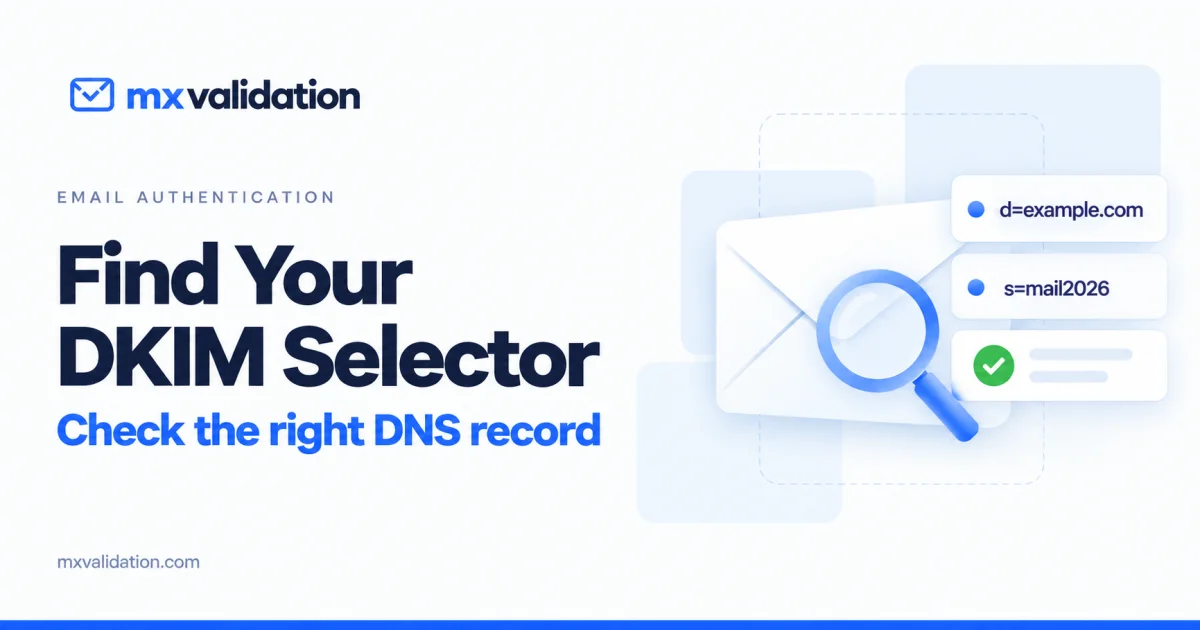
A DKIM lookup needs two values: a signing domain and a selector. If you enter only your website domain and try a guessed selector, a missing record can send you in the wrong direction. Start with a message that was actually sent by the service you want to check.
Find the selector in an email
Send a fresh message from your normal sending platform to a mailbox you control. Open the message's original source or full headers and search for DKIM-Signature.
For this simplified header:
DKIM-Signature: v=1; a=rsa-sha256;
 d=example.com; s=mail2026; ...
enter example.com as the domain and mail2026 as the selector in the DKIM Record Checker. Do not paste the entire header into either field.
The corresponding DNS lookup name is:
mail2026._domainkey.example.com
The signing domain can differ from the visible From address. Use the header values together rather than combining a selector from one signature with a domain from another.
Find it in your sending provider
If no signed message is available, open the domain authentication settings in your email provider. Copy the exact DNS instructions for that domain.
Google Workspace commonly uses google as its default selector, but administrators can choose another value. Publishing Google's DNS record is followed by enabling signing in the Admin console.
Microsoft 365 custom-domain setup uses selector1 and selector2 CNAME records. Copy the targets supplied for your tenant; do not construct them from another company's example. Publish both required records and confirm signing is enabled.
A domain can use different services for newsletters, business mail and application notifications. Keep a small inventory:
| Sending service | Signing domain | Selector | Last message checked |
|---|---|---|---|
| Business mailbox | Your observed d= value | Your observed s= value | Date |
| Newsletter platform | Your observed d= value | Your observed s= value | Date |
| Website notifications | Your observed d= value | Your observed s= value | Date |
Troubleshoot a missing lookup
Check these details before changing DNS:
- Did you copy the selector from a recent message from the correct service?
- Did the DNS panel append your domain automatically? Inspect the saved hostname for accidental duplication.
- Does the provider require TXT or CNAME? Follow its instructions exactly.
- Was signing enabled after the record was published?
- Has a recent edit had time to clear the relevant DNS caches?
Do not delete other selectors merely because your latest message uses a different one. They may belong to another active service or a key rotation.
A DNS record is only part of the test
Finding a public key does not prove that an individual message's signature verifies. For an actual sending-path check, send an email test. If you already have an exported message, the EML / EMLX Viewer can help you inspect its headers.
Next, review the DMARC record and our guide to SPF and DKIM passing while DMARC fails. Treat DNS configuration and message results as separate evidence.
Frequently asked questions
Can I just use default as the selector?
Only if your provider or a real signature identifies it. A familiar-looking selector is not evidence that it belongs to your setup.
Which message should I use?
Use a fresh message from the exact platform you are investigating. A newsletter does not necessarily use the same authentication setup as a business mailbox.
Should I share the full email headers publicly?
Share only what is necessary. Headers and message files can include addresses and other private details. Keep full messages and private report links out of public support posts.